Monitor mistakes to avoid before you buy
Monitor mistakes to avoid before you buy: wrong size, weak computer, chasing refresh rate, ignoring panel type and skipping ports.
On this page
- Mistake 1: size without sharpness
- Mistake 2: 4K with a weak computer
- Mistake 3: chasing refresh rate
- Mistake 4: ignoring panel type
- Also: skipping the warranty
- Also: buying for the largest number
- Also: ignoring desk depth and viewing distance
- Also: assuming USB-C does everything
- A worked example
- A short checklist
- Mistake 5: trusting HDR labels
- Also: comparing response times across brands
- Mistake 6: skipping ports
- Mistake 7: forgetting the stand
- The practical answer
Monitors are easy to buy wrongly because the box highlights the numbers that sell, not the ones that fit your desk. This is general advice drawn from manufacturer specification pages and standards, not a hands on test. The four examples are the Samsung Odyssey G55C, Dell S2725QS, Samsung Essential S3 and Dell S2725QC.
Mistake 1: size without sharpness
A 27-inch 1080p screen looks soft, and a 32-inch 1080p screen looks softer. Fix: match resolution to size, as covered in 1440p or 4K.
Mistake 2: 4K with a weak computer
A 4K screen asks your computer for four times the pixels of a Full HD screen, and the output standard must carry the mode you want. Dell lists 4K at 120 Hz through its HDMI ports for the S2725QS, and the HDMI Forum describes HDMI 2.1 as the version built for higher resolution and refresh combinations. A computer with an older output, or a graphics card that is already struggling at 1440p, may not deliver what the screen can display. Fix: check your graphics output and the frame rates you get at 4K before you buy, and consider 1440p if the computer is the limit.
Mistake 3: chasing refresh rate
The Samsung S36GD page says its maximum is 100 Hz but the default is 60 Hz until you change it in the menu. Fix: after connecting, check the refresh rate in your operating system settings. See what is monitor refresh rate.
Mistake 4: ignoring panel type
Examples covered here include Dell S2725QS.
IPS screens offer wide viewing angles and consistent color but lower contrast, and VA screens offer stronger contrast but narrower angles and possible ghosting, according to Samsung's buying guide. Fix: match the panel to your room and work.
Also: skipping the warranty
Dell lists three years for the S2725QS and one year for the S2725QC. Fix: compare lengths and terms.
Also: buying for the largest number
A higher refresh rate or resolution than your computer can drive is wasted. Fix: buy for the computer you have.
Read monitor specs explained and how to choose a monitor next.
Also: ignoring desk depth and viewing distance
A large or curved screen needs room. OSHA gives a preferred eye to screen distance of roughly 20 to 40 inches and suggests ways to gain depth, such as pulling the desk away from the wall or placing the monitor in a corner. It also says the monitor should sit directly in front of you, no more than 35 degrees to either side. Fix: measure your desk and your usual sitting distance before choosing a 32-inch model over a 27-inch one.
Also: assuming USB-C does everything
The Dell S2725QC lists a USB-C upstream port with up to 65 W of power delivery and DisplayPort Alt Mode, plus a downstream USB-C port rated up to 15 W. That is helpful for a laptop that can accept 65 W, but a laptop that needs more will charge slowly or not at all, and a laptop USB-C port without video output will not show a picture. Fix: check your laptop's charger wattage and whether its USB-C port carries video, as covered in how to connect multiple monitors to a laptop.
A worked example
Suppose you have a laptop with one older HDMI port and you sit about 30 inches from the screen. A 27-inch 4K monitor listed at 120 Hz is a good match for the viewing distance, but the older port may limit the refresh rate or resolution you can use, and the manufacturer's page will not tell you what your laptop supports. In that case, check the laptop documentation first, then decide whether you need a monitor with USB-C or whether a lower resolution model suits you better. The point is to buy for your actual setup, not the best case on the box.
A short checklist
- List your computer's video ports and their versions.
- Measure your viewing distance and desk depth.
- Pick a size and resolution that fit those two facts.
- Check the stand, VESA pattern and warranty.
- Treat HDR and response time labels as hints, not guarantees.
Mistake 5: trusting HDR labels
Samsung lists HDR10 on the G55C. That is a signal format, not a brightness guarantee. VESA's DisplayHDR certification sets measurable minimums, such as 400 cd/m² peak for DisplayHDR 400 and 1,000 for DisplayHDR 1000. The Dell S2725QS page lists HDR over HDMI but gives no certification or peak figure. Fix: look for a DisplayHDR tier if HDR matters, and otherwise ignore the label.
Also: comparing response times across brands
Samsung quotes 1 ms MPRT while Dell quotes grey to grey figures such as 4, 5 and 8 ms depending on mode. They are different measurements. Fix: do not rank monitors by the response time number alone.
Mistake 6: skipping ports
A monitor is useless at its best settings if your computer cannot send them. The Essential S3 lists one HDMI 1.4 input and a D-Sub input, while the G55C lists DisplayPort 1.2 and HDMI 2.0, and the Dell S2725QS lists HDMI with 4K 120 Hz features and DisplayPort 1.4. Fix: write down the ports on your laptop or graphics card, and match them to the monitor before you buy. The HDMI Licensing Administrator says HDMI 2.1 supports up to 4K at 120 Hz, so an older port or cable may hold you lower.
Mistake 7: forgetting the stand
Samsung lists a tilt-only stand and 75 by 75 VESA mounting for the G55C and Essential S3. Dell lists height, tilt, swivel and pivot and 100 by 100 VESA for the S2725QS. OSHA says monitor supports should allow you to adjust distance, tilt and rotation, and suggests the top of the screen at or slightly below eye level. Fix: if you cannot raise the screen, plan a stand or an arm and check the VESA pattern. Examples covered here include Dell S2725QC.
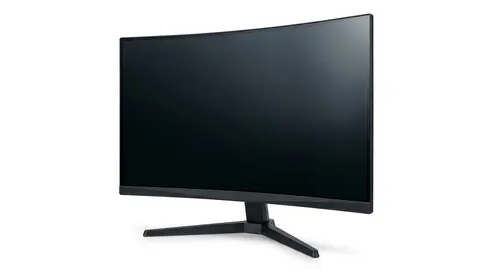
Samsung 32" Odyssey
A 32-inch QHD curved monitor.
Dell S2725QS 27-inch 4K Monitor
A 27-inch 4K IPS Dell monitor.
Samsung 27" Essential S3
A 27-inch FHD curved monitor.
Dell S2725QC 27-inch 4K Monitor
A 27-inch 4K IPS Dell monitor with USB-C.
Be careful with
Letting one impressive number decide the purchase.
The practical answer
Match the monitor to your ports, your desk and your computer, then compare the warranty. Ignore labels you cannot verify.
Questions people ask
Is bigger better?
Not without enough resolution.
Is curved better?
It depends on size and taste.
Do I need HDR?
On mid range monitors, rarely.
What is the biggest mistake?
Buying 4K without checking the computer.
Sources and scope
Reference material is linked for the scope described below. This is not a claim that every statement or current retailer offer has been independently verified.
- Computer workstations: monitors (OSHA, U.S. Department of Labor): government workplace guidance
- DisplayHDR CTS 1.2 specification summary (VESA DisplayHDR): HDR certification criteria
- Dell 27 Plus 4K monitor S2725QS (Dell): manufacturer specifications
- Dell 27 Plus 4K USB-C monitor S2725QC (Dell): manufacturer specifications
- Odyssey G55C 32 inch QHD curved gaming monitor (Samsung): manufacturer specifications
- 27 inch S36GD FHD curved monitor (Samsung): manufacturer specifications
- HDMI 2.1 specification overview (HDMI Licensing Administrator): interface standard
- Monitor buying guide: IPS vs VA vs TN vs OLED (Samsung): panel type comparison by a manufacturer
No hands-on testing or systematic reliability study was performed. Confirm current instructions, seller, model and box contents before ordering.