1440p or 4K: what resolution should your monitor be?
1440p or 4K monitor? How resolution, screen size, viewing distance and your computer decide which one you actually need.
On this page
This is a source-informed explainer, not a hands on test. We read the manufacturer pages for the four monitors below and general display standards, and we did not measure sharpness ourselves. The pixel density figures are our own arithmetic from the published resolution and screen size.
What the numbers mean
1080p is 1920 by 1080 pixels, about 2.1 million in total. 1440p is 2560 by 1440, about 3.7 million. 4K is 3840 by 2160, about 8.3 million. That makes 4K four times the pixels of 1080p and about 2.25 times the pixels of 1440p. More pixels means finer detail, which matters most for text and photos. Whether you can see the difference depends on screen size and how far you sit.
Sharpness by size
Pixels per inch is the diagonal pixel count divided by the diagonal size. Calculated that way, a 27-inch screen works out to roughly 82 pixels per inch at 1080p, 109 at 1440p and 163 at 4K. A 32-inch screen works out to roughly 92 at 1440p and 138 at 4K. These are our calculations, not manufacturer claims, and they show why a resolution that looks fine at 24 inches looks soft stretched across 32 inches.
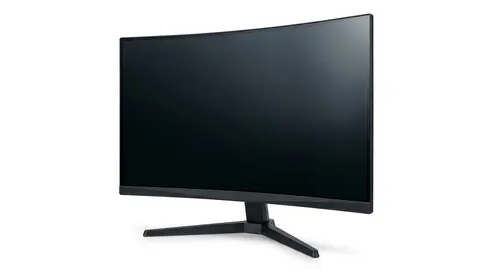
The examples in this article line up with that arithmetic. Dell lists the S2725QS and the S2725QC as 27-inch 3840 by 2160 IPS screens with a 120 Hz standard refresh rate. Samsung lists the Odyssey G55C as a 32-inch 2560 by 1440 VA screen with up to 165 Hz, and lists the Essential S3 as a 27-inch 1920 by 1080 VA screen that runs at up to 100 Hz.
Viewing distance changes the answer
OSHA's computer workstation guidance describes a preferred eye to screen distance of roughly 20 to 40 inches (50 to 100 cm) and suggests enlarging text on smaller monitors when needed. At the far end of that range you resolve less detail, so a lower resolution can look acceptable. At the near end, individual pixels and rough text edges are easier to spot. Measure how far you actually sit before paying for pixels you may not use.
What your computer must do
Driving 4K asks more of the computer than driving 1080p or 1440p. For office work, video and browsing, many recent computers can handle it. For games, the graphics card has to produce frames for far more pixels, so holding a high frame rate at 4K needs a stronger card than the same game at 1440p. Our listing research cannot tell you which card your games need. Check the benchmark figures for your exact game and card.
The connection matters too. The Dell S2725QS lists two HDMI inputs with HDMI 2.1 features up to 4K at 120 Hz, plus a DisplayPort 1.4 input. The HDMI Licensing Administrator describes HDMI 2.1 as supporting up to 48 Gbps of bandwidth, 4K at up to 120 Hz and 8K at 60 Hz. That means the cable, the computer port and the monitor input all need to support the mode you want. A graphics card or laptop port limited to an older standard can silently cap you at a lower refresh rate or resolution.
Scaling
At 27 inches and 4K, text at 100 percent scaling is very small. Operating systems let you scale the interface, commonly to 125 or 150 percent, so text stays comfortable while edges look smoother. That is not a flaw. It is the reason 4K looks sharp rather than small. Some older programs scale poorly, so test the software you use every day before committing.
Which one for whom
If you read, write, code or work in spreadsheets for hours, the extra sharpness of 4K at 27 inches is the clearest benefit. If you edit photos or video, 4K also gives you more detail to inspect, though color accuracy and panel quality matter as much. If you play fast games on a mid range card, 1440p is easier to drive and leaves frame rate to spare. If your budget is tight or the screen is small, 1080p remains workable at 24 inches and under, but it looks soft at 27 and above.
The Dell S2725QC adds a USB-C input. Dell lists a 65 W upstream port using DisplayPort Alt Mode, which means a compatible laptop can send video and receive charging through one cable. That is a convenience feature, not a sharpness feature, so weigh it separately.
A middle path
Some people run 4K for desktop work and lower the game resolution when frame rate matters. On an LCD, a non native resolution can look softer than native, so test it before relying on it. Upscaling features in some games and graphics drivers can also help, but they depend on your card and the game, so check support first.
What else matters
Resolution is only one number. Panel type, brightness, color coverage and refresh rate shape what you see. Dell lists 99 percent sRGB coverage for both Dell models here, and Samsung lists contrast and brightness figures for its screens, but none of those are our measurements. Read what refresh rate means, monitor specs explained and how to choose a monitor before you decide.
Samsung 32" Odyssey
A 32-inch QHD curved VA gaming monitor with up to 165 Hz.
Dell S2725QS 27-inch 4K Monitor
A 27-inch 4K IPS Dell monitor with 120 Hz and built-in speakers.
Samsung 27" Essential S3
A 27-inch FHD curved VA monitor with a simple tilt stand.
Dell S2725QC 27-inch 4K Monitor
A 27-inch 4K IPS Dell monitor with a USB-C input.
Be careful with
Buying 4K for games without checking that your graphics card and ports can reach the frame rate and refresh rate you want.
The practical answer
If you read, write or edit a lot, 4K at 27 inches is worth considering. If you mostly game on a modest card, 1440p is the better balance of sharpness and speed. Whichever you pick, confirm the ports and cables can carry it.
Questions people ask
Is 4K worth it at 27 inches?
For sharp text and photos, many people say yes. For fast games on a modest card, 1440p is easier.
Is 1440p enough at 32 inches?
It is acceptable, though 4K looks clearer at that size.
Does 4K need a strong computer?
For games, yes. For office work, most modern computers cope.
What about 1080p?
Fine at smaller sizes and tight budgets. It looks soft above about 24 inches.
Sources and scope
Reference material is linked for the scope described below. This is not a claim that every statement or current retailer offer has been independently verified.
- Dell 27 Plus 4K monitor S2725QS (Dell): manufacturer specifications
- Dell 27 Plus 4K USB-C monitor S2725QC (Dell): manufacturer specifications
- Odyssey G55C 32 inch QHD curved gaming monitor (Samsung): manufacturer specifications
- 27 inch S36GD FHD curved monitor (Samsung): manufacturer specifications
- HDMI 2.1 specification overview (HDMI Licensing Administrator): interface standard
- Computer workstations: monitors (OSHA, U.S. Department of Labor): government workplace guidance
No hands-on testing or systematic reliability study was performed. Confirm current instructions, seller, model and box contents before ordering.