How to choose an ultrawide monitor
Choose an ultrawide monitor by application support, connection limits and desk fit. Compare six listings without turning refresh claims into performance tests.
On this page
- Why an ultrawide should start with an application
- Resolution describes pixels, not a guaranteed experience
- Refresh mode belongs beside the port table
- USB C requires more than a matching plug
- Panel and response labels are not independent measurements
- Documented points worth checking first
- Six examples, with a reason to reject each
- Curvature and stand depth need a physical check
- Check a docking setup one link at a time
- Keep the decision reversible
Your editing timeline fits on one screen, but the preview window keeps covering the controls. An ultrawide might solve that arrangement. It will not solve an application that refuses the wide layout or a dock that cannot send the required display mode.
We opened the six listings below and checked Dell's S3425DW manufacturer specifications. This is a source-informed guide, not a display test. We did not measure color, ghosting, input latency or panel uniformity.
Why an ultrawide should start with an application
People use wide screens for timelines, spreadsheets and documents side by side. Check the actual application arrangement before choosing a diagonal size. A wide panel does not behave exactly like two separate monitors, particularly when sharing a screen or running an application full screen.
For a worked example, an editor wants a timeline beside a video preview but also joins calls. They should check the editing layout and how the call software shares a window. If sharing the entire wide desktop makes text difficult for other participants to read, a selected window may be the more useful workflow.
Resolution describes pixels, not a guaranteed experience
The SANSUI 34-inch 200Hz and SANSUI 240Hz listings state 3440 by 1440. Dell also confirms that pixel layout for S3425DW. It provides horizontal workspace, but text size still depends on the physical screen and software scaling.
Do not compare an ultrawide with a conventional monitor using only the word 1440p. Check both horizontal and vertical pixel counts. The Samsung 57-inch Odyssey Neo G9 listing describes dual UHD, a substantially different format that needs its own connection and desk check.
Refresh mode belongs beside the port table
The Dell S3425DW manufacturer page states 120Hz. The Samsung ViewFinity S50GC listing states 100Hz, and Alienware AW3425DWM states 180Hz. Those are advertised display modes, not rankings of real motion quality.
A monitor may support a mode through one input but not through the connection chain you plan to use. Check the computer output, dock, adapter and cable against the monitor's mode table. The refresh rate explainer separates display updates from the frames a game produces.
USB C requires more than a matching plug
Dell's S3425DW page describes a USB C upstream connection with DisplayPort Alternate Mode and power delivery up to 65W. That can be relevant to a compatible laptop setup. It does not establish that every USB C laptop port carries video or that the charging allowance meets every laptop's needs.
Check the laptop and dock documentation before buying for a single cable arrangement. If a charger remains necessary, plan where it and the additional lead belong. Our laptop monitor connection guide covers the wider setup questions.
Panel and response labels are not independent measurements
The Dell manufacturer page identifies a VA panel. Some other listings also use VA terminology. Do not turn that label into a universal color or motion recommendation. A measured review of the exact model is more useful for those questions than a general panel category.
Likewise, gray to gray and motion picture response claims are not automatically comparable. We found unusually low response marketing in some listing text and did not reproduce it as verified performance. Ask which measurement and operating mode a claim describes.
Documented points worth checking first
OSHA's workstation guidance applies to a wide screen too: the top of the display at or slightly below eye level, 20 to 40 inches away, with no more than 35 degrees of head turn to either side.
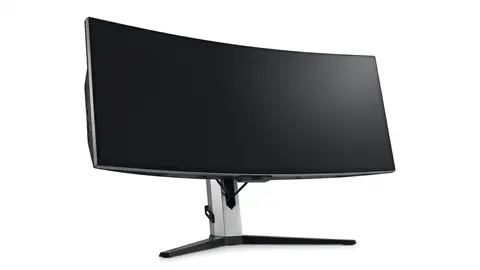
Samsung's S50GC page lists a tilt-only stand, while Dell's S3425DW page lists a stand with a stated depth and a 1800R curve. Dell lists a one year warranty for the S3425DW and three years for the Alienware AW3425DWM. Samsung's Neo G9 page lists DisplayPort 2.1 for its 7680 by 2160 mode, and the HDMI Forum describes HDMI 2.1 as the version designed for higher resolution and refresh combinations. Check which cable standard your graphics output actually supports.
Six examples, with a reason to reject each
Dell S3425DW 34-inch Monitor
Consider S3425DW when its documented connection features fit your laptop; skip it if the charging or display mode requirements do not match.
Samsung ViewFinity S50GC 34-inch
Compare the ViewFinity for a wide working layout, but do not assume its inputs replace a laptop dock.
The two SANSUI listings emphasize higher refresh modes. They are candidates only after checking the input requirements and whether your intended software benefits. Skip them if you need a height adjustment or speaker feature that the selected option does not establish.
SANSUI 34-inch Curved Ultrawide Monitor
Check the exact mode table and stand adjustment before choosing the 200Hz listing.
SANSUI 34-inch Curved Monitor 240Hz UWQHD 3440×1440
Choose the 240Hz listing only with a documented connection path and a reason to use that mode.
Alienware AW3425DWM 34-inch
Consider AW3425DWM for a gaming focused layout, not as proof of measured latency or color accuracy.
Samsung Odyssey Neo G9 57-inch
Treat the 57-inch Neo G9 as a different format; skip it when its full footprint and connection needs are unresolved.
Curvature and stand depth need a physical check
Measure the intended screen position, its full width and the stand footprint using the selected model's drawing. A diagonal measurement does not tell you how much space remains for a keyboard. Check clearance behind a curved screen as well as its outer edges.
A tighter curve may be a preference, but we did not establish a health or accuracy advantage. For a monitor arm, verify the exact mounting pattern, supported load and desk attachment requirements. Do not transfer a mount specification between similar looking models.
Check a docking setup one link at a time
Suppose a laptop already works with a smaller display through a dock. That does not establish the ultrawide mode you want. List the laptop output, the dock output, any adapter and the monitor input in order. Find the supported resolution and refresh combination for that complete path, not a maximum number from one component.
If a required mode is undocumented, ask the relevant maker. Do not buy a faster cable as a substitute for an answer about the dock. The monitor cannot repair an output limit elsewhere in the chain.
A useful comparison separates three jobs: receiving a desktop image, delivering the advertised refresh mode and rendering a game at the frame rate you want. Start with the first two. Then assess the game using appropriate measurements for your system.
Keep the decision reversible
Read the return conditions and pixel fault policy for the exact seller and model. Save the product specifications and follow the maker's cleaning instructions; do not improvise a cleaner on a coated panel.
The ultrawide shortlist, specification guide and buying mistakes provide related reading.
Be careful with
Paying for a wide or fast display before checking the application layout and complete output path. A headline mode cannot fix an incompatible dock or an unsuitable desk.
Before checking the current price on Amazon, write down the required resolution, input mode and physical footprint. If you cannot confirm all three for the selected option, narrow the shortlist rather than guessing from the screen size.
Questions people ask
What resolution should an ultrawide have?
Match the pixel layout to the work you do and the connection your computer supports. Several checked 34 inch entries state 3440 by 1440; the 57 inch Neo G9 is a different dual UHD format.
Do I need a curved screen?
Treat curvature as a layout and viewing preference. We did not verify an eye comfort benefit, and a curve does not create more usable pixels.
Does my computer need a special graphics card?
Check its supported output mode and the complete cable or dock path. Gaming frame delivery is a separate requirement from displaying the desktop.
Is a 240Hz ultrawide worth choosing?
Only when the required display mode and your intended game performance justify it. The advertised refresh rate does not establish measured response, latency or image quality.
Sources and scope
Reference material is linked for the scope described below. This is not a claim that every statement or current retailer offer has been independently verified.
- Dell 34 Plus curved monitor S3425DW (Dell): manufacturer specifications
- 34 inch ViewFinity S50GC Ultra-WQHD monitor (Samsung): manufacturer specifications
- Alienware 34 gaming monitor AW3425DWM fact and spec sheet (Dell Technologies): manufacturer specifications
- 57 inch Odyssey Neo G9 G95NC (Samsung): manufacturer specifications
- Computer workstations: monitors (OSHA, U.S. Department of Labor): government workplace guidance
- DisplayHDR CTS 1.2 specification summary (VESA DisplayHDR): HDR certification criteria
- HDMI 2.1 specification overview (HDMI Licensing Administrator): interface standard
- VESA releases DisplayPort 2.1 specification (VESA): interface standard
- Monitor buying guide: IPS vs VA vs TN vs OLED (Samsung): panel type comparison by a manufacturer
No hands-on testing or systematic reliability study was performed. Confirm current instructions, seller, model and box contents before ordering.