Is the Plugable Dual 1080p HDMI Universal worth it?
A research based review of the Plugable Dual 1080p HDMI Universal Docking Station: who it suits, who should skip it and what to check.
On this page
This is a source-informed review, not a hands on test. We read Plugable's specification page for the UD-3900 and Synaptics' DisplayLink explanation, and compared it with Plugable's own triple display dock. We did not use the dock and did not measure image quality.
What it is
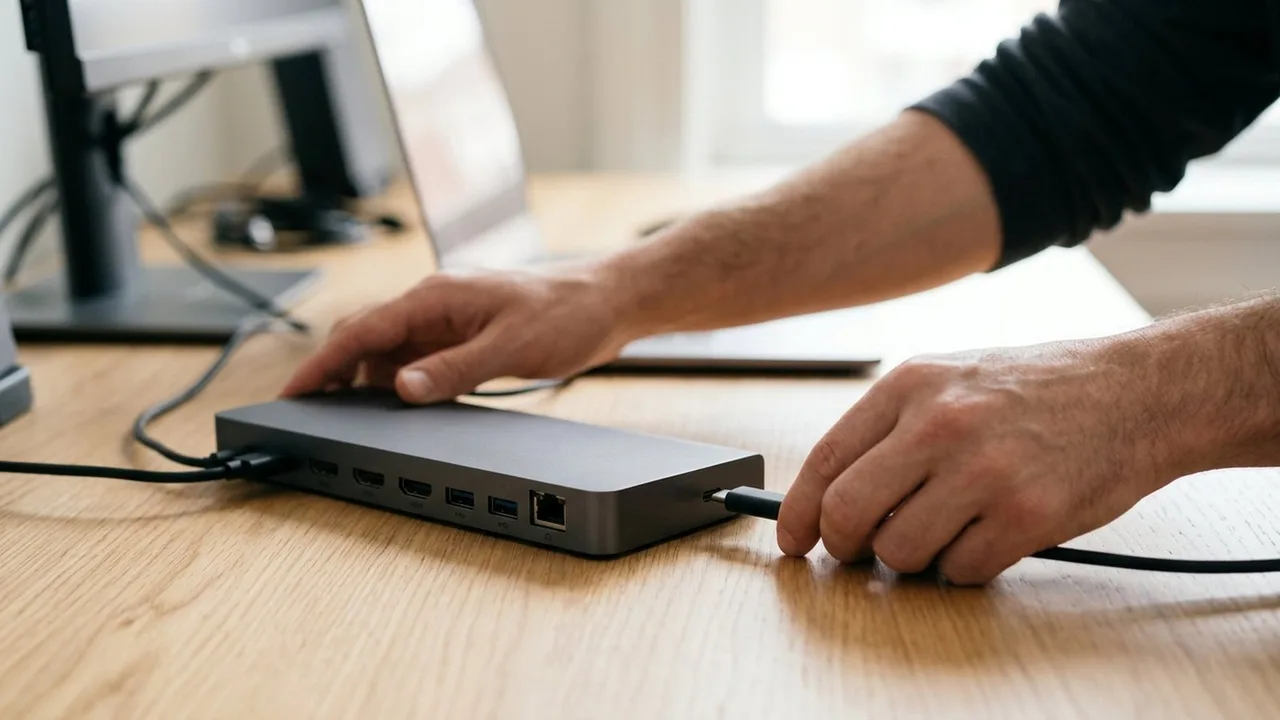
The Plugable UD-3900 is a universal dock that adds two HDMI outputs to a laptop over USB. Plugable lists up to 1920 by 1200 at 60 Hz on each output in most places on its page (a few places say 1920 by 1080), and says it does not do 4K. It uses DisplayLink, which Synaptics describes as sending video over USB with a driver.
Who it suits
People who need more than one external screen, or whose laptop only drives one. An office user with documents, email and web pages gets the most from it, since those jobs do not need fast motion or 4K.
Who should skip it
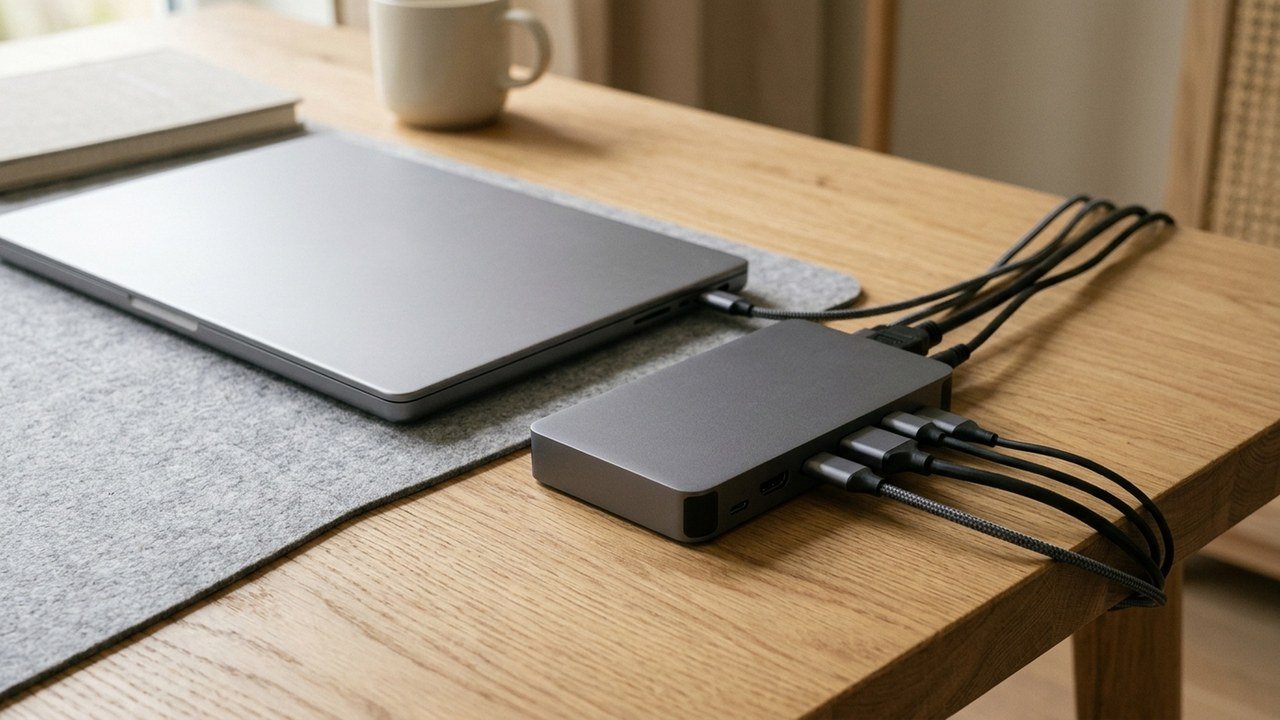
Plugable lists no laptop charging on this model, so if you want one cable for charging and screens, look at the UD-ULTCDL, which Plugable lists at up to 100 W. Skip it for 4K screens, gaming and fast motion, since Plugable says it is not meant for gaming. Skip it if your laptop cannot install the DisplayLink driver.
What to check
Dual HDMI outputs, up to 1920 by 1200 at 60 Hz each, no 4K, no laptop charging, and a driver requirement. These come from the maker. We did not verify them ourselves.
What it does not tell us
We did not measure how smooth fast motion looks, how much processor time the driver uses, or how reliably it reconnects after sleep. Those are the usual questions for a DisplayLink dock, and we have no test of our own to answer them. If they matter, look for recent owner reports for your operating system.
Ports and extras Plugable lists
Beyond the two HDMI outputs, the page lists two front USB 3.0 Type-A ports, four rear USB 2.0 Type-A ports, Gigabit Ethernet, a headphone jack and a microphone jack. The connection to the computer is one USB 3.0 link at 5 Gbps, using a hybrid cable that ends in USB-A or USB-C. That is useful for a mouse, a keyboard and a webcam, but the shared link means a fast external drive and two screens will compete.
The dock has its own 20 W power adapter and does not charge the laptop. Plugable lists the HDMI outputs as HDMI 1.3 and the DL-3900 DisplayLink chipset, and states that DisplayPort monitors, 4K and HDCP are not supported.
Where Plugable's page disagrees with itself
Plugable's page gives 1920 by 1200 at 60 Hz in its specifications and video table, but its summary callout and FAQ say 1920 by 1080. If you rely on the extra 120 pixels of height, confirm with Plugable before buying. The same page also gives different minimum macOS versions in different places, so check your Mac against the support table. Windows 10 and 11 and ChromeOS 100 or later are listed, and Linux is listed as not compatible.
Warranty and returns
Plugable lists a two year warranty, lifetime technical support and a 30 day money back guarantee. We did not test the support, so treat those as stated terms.
Setting it up
Install the driver for your operating system from Plugable's support page, connect the dock to the laptop, plug in the screens and arrange them in the display settings. Use the cables supplied and test each output separately before you rely on it.
Limits to expect
DisplayLink compresses video and uses some processor power, so fast motion may look less smooth than a native output. For office work this is rarely noticeable. Intel's Thunderbolt 4 page lists two 4K displays at 60 Hz and 40 Gbps, a different class of connection for people who need more.
A worked example
Picture a laptop with one HDMI port and a desk that needs two screens for a spreadsheet and a reference page. The UD-3900 gives two outputs over one USB cable, the laptop keeps its own charger, and the mouse and keyboard plug into the dock. The limits to check are the driver on your operating system, the laptop's USB port and whether your screens are happy at 1920 by 1200 or 1920 by 1080. If a video call or a webcam share the same USB link, test them together before you rely on the setup.
How it compares
The UD-ULTCDL adds a third HDMI output, up to 100 W charging and one native output at up to 4K at 30 Hz, but Plugable lists HDCP as unsupported on it. See docking station specs explained, the selection guide and the multi monitor guide.
Plugable Dual 1080p HDMI Universal Docking Station
Two HDMI outputs up to 1920 by 1200 at 60 Hz, DisplayLink driver, no charging.
Plugable USB-C Triple Monitor Docking Station
Three HDMI outputs, up to 100 W charging, one native output at up to 4K at 30 Hz.
Be careful with
Expecting 4K, gaming performance or laptop charging from a dock Plugable lists for office displays.
Verdict
A practical way to add two office screens to a laptop that lacks the ports. Check the driver and port requirements first, and step up to the triple display dock or a Thunderbolt 4 dock if you need charging or more resolution.
Questions people ask
Does it charge my laptop?
Check the listing. Some docks do not provide power delivery.
Does it need a driver?
Many universal docks use DisplayLink drivers. Check the listing.
Is it good for video?
Basic video is fine. Gaming and demanding video are better on native outputs.
Does it work on all laptops?
Check compatibility with your system.
Sources and scope
Reference material is linked for the scope described below. This is not a claim that every statement or current retailer offer has been independently verified.
- Plugable universal dual monitor docking station UD-3900 (Plugable): manufacturer specifications
- How does DisplayLink work? (Synaptics DisplayLink): technology explanation by the vendor
- Plugable USB-C triple display docking station UD-ULTCDL (Plugable): manufacturer specifications
- What is Thunderbolt 4 and how is it different from USB-C? (Intel): interface standard
No hands-on testing or systematic reliability study was performed. Confirm current instructions, seller, model and box contents before ordering.