What the specs on a drawing tablet listing really mean
What the specs on a drawing tablet listing really mean: active area, pressure levels, tilt, report rate and display terms explained.

On this page
Tablet listings use numbers freely. This source-informed explainer decodes them using Wacom's pages for the Intuos range and Huion's pages for the Kamvas 13 Gen 3. We did not test either, and the specs are the makers' claims.
Active area
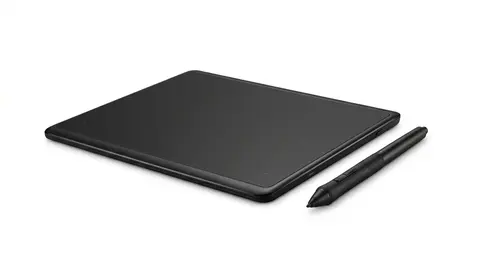
The active area is the part of the surface that senses the pen. Wacom lists the Intuos Medium at 216 by 135 mm and the Small at 152 by 95 mm. Huion lists a 13.3-inch screen for the Kamvas 13 Gen 3 with a working area of 293.8 by 165.2 mm. Note that the overall tablet is bigger than the active area, so check both when you plan the desk.
Pressure levels
Wacom lists 4,096 levels for the Intuos pen and Huion lists 16,384. Wacom's article says most beginners cannot tell the difference between its entry-level pen and a professional pen with more levels. Different makers use different sensors, so compare how a pen feels, not just the number.
Tilt
Tilt lets the pen shade as you angle it. Huion lists plus or minus 60 degrees for its pen. Wacom's Intuos page does not list tilt, so do not assume it.
Resolution and report rate
Pen resolution is in lines per inch. Wacom lists 2540 lpi and Huion lists 5080 lpi. Report rate is how many pen positions per second the tablet reads, which Wacom lists at 133 and Huion at above 260. These affect how smooth a line looks and are not the same as screen resolution, so we treat them as secondary to feel and fit.
Reading height
Wacom lists a reading height of 7 mm and Huion lists 10 mm. This is how far above the surface the pen is still detected. It matters for hovering over a cursor, and you will not notice it for most work.
Battery free pens
Both makers list battery free pens that use electromagnetic resonance technology, so the pen needs no charging. Wacom lists a non-replaceable battery in the Bluetooth tablet, rated for at least 15 hours.
Connection
Wacom lists Bluetooth and a USB cable. Huion lists a 3-in-1 cable with a full featured USB-C cable sold separately. A pen display needs a port that carries video, so a plain data-only USB-C port will not work.
Pen displays
Huion lists 1920 by 1080, full lamination, 99 percent sRGB and 90 percent Adobe RGB, 220 nits and a 25 ms typical response time. Lamination reduces the gap between pen and image, called parallax. Colour numbers matter if you do color critical work.
Buttons and dials
Wacom lists four ExpressKeys, supported on Windows and Mac only, and two pen buttons. Huion lists five press keys and two dials on the Kamvas, plus three pen buttons. Programmable shortcuts speed up zoom and brush changes.
Dials and buttons
The Huion lists dual dials for quick zoom and brush size. Buttons help speed.
Compatibility
Wacom lists Windows 7 or later, macOS 10.15 or later, Android 6.0 or later and ChromeOS. Huion lists Windows, macOS 10.12 or later, Android devices that support USB 3.1 and DP 1.2, and Ubuntu 20.04. Check the maker's list for your version.
Physical size and weight
Wacom lists the Medium at 264 by 200 by 8.8 mm and 410 g, and the Small at 200 by 160 by 8.8 mm. Huion lists the Kamvas 13 Gen 3 at 361 by 203 by 11.7 mm and 865 g. The Kamvas also needs a power and cable arrangement, so it takes more desk space than its screen suggests. Huion's page lists an optional stand sold separately.
Accuracy
Wacom lists pen accuracy of plus or minus 0.25 mm. Huion lists plus or minus 0.3 mm at the center and plus or minus 2 mm at the corners. Accuracy at the edges matters if you work close to the border of the surface. Neither figure is a measured result from us.
Warranty and support
Wacom lists a one year limited warranty. Huion's page links to a warranty statement without listing the terms, so check it before you buy. Read each maker's terms on its own page rather than assuming they match.
What the page leaves out
Wacom's page lists the Intuos pen without tilt, and its software bundle needs registration. Huion's page lists the Kamvas without a clear HDMI entry. If a spec matters to you, find it in writing before you order, or ask the maker.
How to use these numbers
Pick three specs that matter for how you work, such as active area, connection and operating system support, and treat the rest as tie-breakers. A spec you cannot feel or measure, such as report rate or reading height, should not decide a purchase. Compare like with like: a pad with a pad, and a display with a display.
Finally, remember that two listings can use the same word for different things. "Resolution" can mean the pen's lines per inch or the screen's pixels, and "size" can mean the active area or the whole device. Read the unit next to each number.
Put it together
Read how to choose a drawing tablet and the Wacom review.
Wacom Intuos Medium
A Bluetooth pen tablet with a 216 by 135 mm active area.
HUION Kamvas 13 Gen 3
A 13.3-inch pen display with dials and plus or minus 60 degrees of tilt.
Be careful with
Paying for huge pressure numbers, or assuming tilt that the listing does not state.
The practical answer
Active area, comfort, connection and compatibility matter most. The pressure number is the least useful one on the page.
Questions people ask
What is active area?
The part of the tablet you can draw on.
What are pressure levels?
How many steps of pen pressure the tablet senses.
What is parallax?
The gap between pen tip and image on a pen display.
What are express keys?
Programmable buttons on the tablet.
Sources and scope
Reference material is linked for the scope described below. This is not a claim that every statement or current retailer offer has been independently verified.
- Wacom Intuos pen tablet (Wacom): manufacturer specifications
- Wacom Intuos Medium Bluetooth CTL6100WLK0 (Wacom eStore): manufacturer specifications
- Differences between entry-level and professional Wacom devices (Wacom Community): manufacturer buying guidance
- Huion Kamvas 13 (Gen 3) (Huion): manufacturer specifications
- How do I connect the Huion Kamvas 13 (Gen 3) to my computer? (Huion Support): manufacturer setup instructions
No hands-on testing or systematic reliability study was performed. Confirm current instructions, seller, model and box contents before ordering.